Have you ever wondered how websites like Google, YouTube, Facebook, or Amazon are built?
Every website you visit begins with one technology:
HTML (HyperText Markup Language)
Whether you want to become a Frontend Developer, Backend Developer, Full-Stack Developer, WordPress Developer, or even a Software Engineer, HTML is the very first skill you should learn
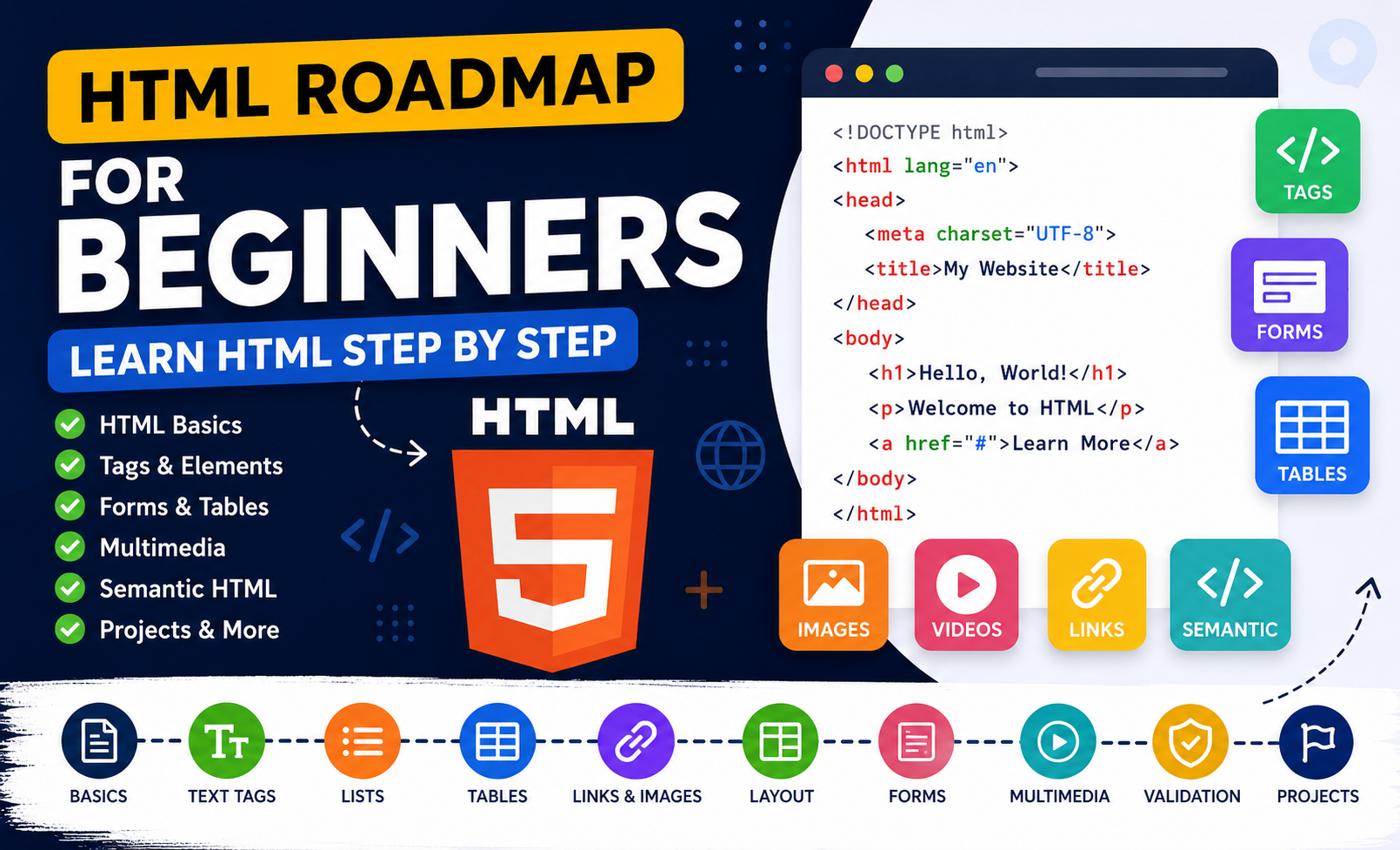
HTML Roadmap for Beginners
Follow the animated lines from the middle card. Move your mouse over any HTML tag to learn what it does.
HTML Roadmap
for Beginners
Learn the important HTML elements needed to create structured web pages.
The good news?
HTML is one of the easiest programming technologies to start with.
You don't need advanced mathematics.
You don't need previous coding experience.
You only need curiosity and practice.
By the end of this roadmap, you'll understand exactly what HTML is, why it is important, how web pages are structured, and what topics you should learn before moving on to CSS and JavaScript.
Let's begin your journey.
What is HTML?
HTML stands for HyperText Markup Language.
It is not a programming language.
Instead, HTML is called a markup language because it describes the structure of a webpage using special elements called tags.
Imagine you're building a house.
Before choosing wall colors or buying furniture, you first need:
- A foundation
- Walls
- Rooms
- Doors
- Windows
- Roof
Without these, the house cannot exist.
A website works exactly the same way.
HTML builds the structure of a webpage before CSS styles it and JavaScript makes it interactive.
Think of it like this:
| Technology | Real-Life Example |
|---|---|
| HTML | House Structure 🏠 |
| CSS | Paint & Decoration 🎨 |
| JavaScript | Electricity & Smart Devices ⚡ |
Without HTML, there is nothing to decorate.
Without HTML, JavaScript has nothing to interact with.
That is why every web developer starts by learning HTML.
Why Should You Learn HTML?
Many beginners ask:
"Can I skip HTML and directly learn JavaScript?"
The answer is:
No.
JavaScript manipulates HTML.
CSS styles HTML.
React creates HTML.
Vue creates HTML.
Angular creates HTML.
WordPress outputs HTML.
Laravel outputs HTML.
Symfony outputs HTML.
PHP generates HTML.
Everything eventually becomes HTML inside the browser.
This makes HTML one of the most important technologies in web development.
Table of Contents
Where is HTML Used?
HTML is literally everywhere on the web.
Examples include:
Personal Portfolio
Your portfolio might contain:
- Name
- Photo
- Skills
- Projects
- Contact Form
Every one of these elements is built using HTML.
Company Websites
Companies like:
- Microsoft
- Apple
- Tesla
- OpenAI
All use HTML to structure their websites.
Online Stores
Amazon
eBay
AliExpress
Daraz
Every product page begins with HTML.
Blogs
WordPress blogs use HTML.
Even if you never write HTML directly, WordPress generates HTML automatically.
Dashboards
Admin panels
Analytics dashboards
Student portals
Hospital systems
Employee management systems
Every page contains HTML elements.
What Does HTML Actually Do?
HTML tells the browser:
"This is a heading."
"This is a paragraph."
"This is a button."
"This is an image."
"This is a form."
"This is a table."
"This is navigation."
"This is the footer."
Without HTML, browsers wouldn't know how to display information.
Understanding HTML Through a Restaurant Example
Imagine you're opening a restaurant.
The restaurant contains:
Restaurant Name
↓
Menu
↓
Food Images
↓
Customer Reviews
↓
Reservation Form
↓
Contact Information
HTML creates each of these sections.
For example:
Restaurant Name → <h1>
Menu → <section>
Food Image → <img>
Reservation Form → <form>
Button → <button>
Footer → <footer>
The browser reads these tags and understands exactly how the page should be organized.
What is an HTML Tag?
Everything in HTML is written using tags.
A tag usually has an opening and a closing version.
Example:
<p>Hello World!</p>Here:
<p>
means:
Start a paragraph.
</p>
means:
End the paragraph.
Everything between them becomes paragraph text.
Another example:
<h1>Welcome to My Website</h1>The browser understands this is the main heading of the page.
Anatomy of an HTML Element
Let's examine a simple example:
<h1>Learn HTML</h1>This contains three parts:
Opening Tag
<h1>Content
Learn HTMLClosing Tag
</h1>Together, they form one HTML element.
Your First HTML Page
Every HTML page follows a basic structure.
<!DOCTYPE html>

<html>

<head>

<title>My First Website</title>

</head>

<body>

<h1>Hello World!</h1>

<p>Welcome to my first webpage.</p>

</body>

</html>
Let's understand every line.
Line 1
<!DOCTYPE html>This tells the browser:
"This document uses HTML5."
Always place it at the top.
Line 2
<html>This is the root element.
Everything on the webpage goes inside it.
Line 3
<head>The head stores information about the page.
Users normally don't see this content.
It contains:
- Title
- CSS
- Meta Tags
- Icons
- SEO Information
Line 4
<title>My First Website</title>This appears inside the browser tab.
Example:
Chrome Tab
My First WebsiteLine 5
<body>Everything inside the body is visible to visitors.
Examples:
Images
Videos
Headings
Paragraphs
Buttons
Forms
Tables
Navigation
Line 6
<h1>Hello World!</h1>Displays the biggest heading.
Line 7
<p>Welcome to my first webpage.</p>Displays normal text.
How Browsers Read HTML
When you open a webpage, the browser reads HTML from top to bottom.
Example:
<h1>Programming</h1>

<p>Learn HTML</p>

<img src="html.png">

<button>Start Learning</button>
The browser creates:
Programming
↓
Learn HTML
↓
Image
↓
Button
Everything appears exactly in this order.
How HTML Works with CSS and JavaScript
Let's build a simple button.
HTML
<button>Click Me</button>This creates the button.
CSS
button{

background:blue;

color:white;

}
Now the button becomes beautiful.
JavaScript
button.onclick=function(){

alert("Hello!")

}
Now it becomes interactive.
HTML creates.
CSS styles.
JavaScript controls behavior.
Why HTML is Easy to Learn
Unlike many programming languages,
HTML doesn't require algorithms or complex logic.
Instead, it is based on describing content.
You simply tell the browser:
"This is a heading."
"This is a paragraph."
"This is an image."
"This is a button."
That's why beginners can usually start building websites within a few hours of learning HTML.
HTML Learning Roadmap
The roadmap below shows the recommended order for learning HTML from beginner to advanced beginner.
Step 1: Learn the Basic Structure
Understand how an HTML document is organized.
Topics include:
<!DOCTYPE html><html><head><title><body>
Step 2: Learn Text Tags
These are the foundation of every webpage.
Examples:
<h1>to<h6><p><b><strong><i><em>
Step 3: Learn Lists and Tables
Organize information using:
- Ordered Lists
- Unordered Lists
- Tables
- Rows
- Cells
Step 4: Learn Links and Images
Connect pages together using hyperlinks and display images.
You'll master:
<a><img>
Step 5: Learn Layout Elements
Build page sections using:
<div><span>
These become extremely important when learning CSS.
Step 6: Learn Semantic HTML
Modern websites use semantic elements to improve:
- SEO
- Accessibility
- Readability
Examples include:
<header><main><section><article><footer>
Step 7: Learn Forms
Forms allow users to interact with websites.
You'll learn:
<form><input><textarea><button><select>
Step 8: Learn Multimedia
Add engaging content such as:
- Audio
- Videos
Using:
<audio><video>
Step 9: Validate Your Code
Always test your HTML before publishing.
A clean HTML structure helps:
- SEO
- Accessibility
- Browser compatibility
- Website performance
Common Beginner Mistakes
Avoid these mistakes while learning HTML:
- ❌ Skipping closing tags.
- ❌ Using multiple
<h1>elements without purpose. - ❌ Forgetting the
altattribute on images. - ❌ Writing everything inside
<div>instead of using semantic HTML. - ❌ Ignoring indentation.
- ❌ Copying code without understanding it.
Understanding HTML Document Structure
Every website on the internet begins with a basic HTML structure.
Think of HTML as constructing a building.
Before adding furniture or painting the walls, builders first create:
🏠 Foundation
🏠 Walls
🏠 Roof
🏠 Rooms
Only after that do they decorate it.
A webpage follows exactly the same principle.
Before adding beautiful CSS or JavaScript animations, you first need a proper HTML structure.
Without this structure, browsers cannot understand your page correctly.
Basic HTML Structure
Every HTML page starts with something similar to this:
<!DOCTYPE html>

<html lang="en">

<head>

    <meta charset="UTF-8">

    <meta
        name="viewport"
        content="width=device-width, initial-scale=1.0"
    >

    <title>My First Website</title>

</head>

<body>

    <h1>Hello World!</h1>

    <p>Welcome to HTML.</p>

</body>

</html>
At first glance, this may look complicated.
Don't worry.
Let's understand every line one by one.
1. DOCTYPE Declaration
<!DOCTYPE html>This line must always be the very first line.
Its job is to tell the browser:
"This webpage uses HTML5."
Without it, browsers may display your webpage using older rendering modes, which can cause layout and compatibility issues.
Think of it like this
Imagine giving someone a book.
Before they start reading, you tell them:
"This book is written in English."
The browser needs similar information before reading your webpage.
The <!DOCTYPE html> declaration provides that information.
Good Practice
Always include it.
✅ Correct
<!DOCTYPE html>❌ Incorrect
<html>2. The HTML Element
<html lang="en">This is the root element of every HTML document.
Everything belongs inside it.
<html>

    Head

    Body

</html>
Nothing should exist outside the HTML element except the DOCTYPE declaration.
Why use lang="en"?
This tells browsers and search engines that your content is written in English.
Benefits include:
- Better SEO
- Better accessibility
- Improved screen reader support
- Improved translation accuracy
3. Head Element
<head>

</head>
Many beginners think the head section appears on the webpage.
It doesn't.
Instead, it stores information about the webpage.
Think of it as the control room.
Inside the head you usually place:
- Page title
- CSS files
- JavaScript files
- Meta descriptions
- Character encoding
- Icons
- SEO information
Example
<head>

<title>HTML Tutorial</title>

</head>
The browser tab becomes:
HTML Tutorial4. Body Element
Everything the visitor sees goes inside:
<body>

</body>
Examples include:
Images
Buttons
Paragraphs
Videos
Forms
Tables
Navigation
Cards
Footer
Example
<body>

<h1>My Portfolio</h1>

<p>Hello everyone.</p>

<button>Contact Me</button>

</body>
The browser displays all three elements.
HTML Comments
Comments are notes written for developers.
The browser ignores them.
Syntax:
<!-- This is a comment -->Example:
<!-- Header Starts -->

<header>

...

</header>

<!-- Header Ends -->
Comments help organize large projects.
Headings
HTML provides six heading levels.
<h1>

↓

<h2>

↓

<h3>

↓

<h4>

↓

<h5>

↓

<h6>
The smaller the number, the more important the heading.
Example
<h1>Programming</h1>

<h2>HTML</h2>

<h3>Lists</h3>

<h4>Ordered Lists</h4>
Browser output:
Programming
↓
HTML
↓
Lists
↓
Ordered Lists
SEO Tip
Only use one H1 on each page.
Example:
H1

Learn HTML
Correct
H1

HTML Tutorial

H1

Programming

H1

CSS

H1

JavaScript
Incorrect
Paragraph Tag
Paragraphs are written using:
<p>

</p>
Example
<p>

HTML is the foundation of every webpage.

</p>
Browser Output
HTML is the foundation of every webpage.
Why Paragraphs Matter
Without paragraph tags, text becomes difficult to read.
Example:
Bad
HTML CSS JavaScript PHP WordPressBetter
<p>HTML</p>

<p>CSS</p>

<p>JavaScript</p>
Line Break
Sometimes you don't want a new paragraph.
You simply want the next line.
Use:
<br>Example
I love HTML.<br>

I love CSS.
Output
I love HTML.
I love CSS.
Horizontal Line
<hr>Creates a divider.
Example
About Me

-------------------

Projects

-------------------

Contact
Very useful for long pages.
Bold Text
<b>

</b>
Example
<b>HTML</b>Output
HTML
Strong Element
<strong>

</strong>
Looks bold.
But it also tells search engines:
"This text is important."
Example
<strong>

Important Notice

</strong>
For SEO, prefer <strong> over <b> when the text has importance.
Italic Text
<i>

</i>
Example
<i>

Web Development

</i>
Emphasis Element
<em>

</em>
Like <strong>, it has semantic meaning.
Search engines understand that the text is emphasized.
Example
<em>

HTML Roadmap

</em>
Lists
Lists organize information neatly.
HTML provides two main list types.
Ordered List
Numbers automatically appear.
<ol>

<li>HTML</li>

<li>CSS</li>

<li>JavaScript</li>

</ol>
Output
- HTML
- CSS
- JavaScript
Perfect for step-by-step tutorials.
Unordered List
Uses bullet points.
<ul>

<li>HTML</li>

<li>CSS</li>

<li>JavaScript</li>

</ul>
Output
• HTML
• CSS
• JavaScript
Great for feature lists.
Nested Lists
Lists can contain other lists.
Example
<ul>

<li>

Frontend

<ul>

<li>HTML</li>

<li>CSS</li>

<li>JavaScript</li>

</ul>

</li>

</ul>
Output
Frontend
• HTML
• CSS
• JavaScript
Useful for documentation and roadmaps.
Tables
Tables display structured information.
Imagine student marks.
| Name | HTML | CSS |
|---|---|---|
| Ibrahim | 95 | 90 |
HTML makes this possible.
Table Structure
<table>

<tr>

<th>Name</th>

<th>HTML</th>

</tr>

<tr>

<td>Ibrahim</td>

<td>95</td>

</tr>

</table>
Understanding Table Tags
<table>
Creates the table.
<tr>
Creates one row.
<th>
Creates a heading cell.
Usually displayed in bold.
<td>
Creates a normal data cell.
Real Example
Student Results
| Student | HTML | CSS | JavaScript |
|---|---|---|---|
| Alex | 90 | 88 | 91 |
| Maria | 95 | 92 | 90 |
| Ibrahim | 98 | 94 | 96 |
This kind of table is commonly used in:
- School systems
- Employee dashboards
- Hospital records
- Inventory systems
- E-commerce reports
Best Practices
✔ Always use one <h1> per page.
✔ Indent your HTML properly.
✔ Use semantic tags whenever possible.
✔ Close every tag.
✔ Use descriptive text.
✔ Write clean, readable code.
✔ Keep related content grouped together.
Common Beginner Mistakes
❌ Forgetting closing tags.
<p>HelloCorrect
<p>Hello</p>❌ Putting everything inside <div>.
Instead, use semantic tags like:
<header><main><section><footer>
❌ Skipping indentation.
Bad
<html><body><h1>Hello</h1></body></html>Better
<html>

<body>

<h1>Hello</h1>

</body>

</html>
Readable code is easier to maintain.
Mini Project
Build a simple "About Me" page containing:
- Your name as an H1
- A short introduction using a paragraph
- Your hobbies using an unordered list
- Your daily learning steps using an ordered list
- A table showing your programming skills and experience level
Example:
| Skill | Level |
|---|---|
| HTML | Beginner |
| CSS | Beginner |
| JavaScript | Learning |
Interview Questions
1. What is the purpose of <!DOCTYPE html>?
It tells the browser to render the page using the HTML5 standard.
2. What is the difference between <head> and <body>?
<head>contains metadata, page title, SEO information, and linked resources.<body>contains all visible content displayed to users.
3. What is the difference between <b> and <strong>?
<b>makes text visually bold.<strong>makes text bold and adds semantic importance for browsers and assistive technologies.
4. What is the difference between <ul> and <ol>?
<ul>creates an unordered (bulleted) list.<ol>creates an ordered (numbered) list.
5. What are <tr>, <th>, and <td> used for?
<tr>defines a table row.<th>defines a table header cell.<td>defines a table data cell.
Why Learn Links, Images, and Semantic HTML?
Imagine visiting a website where:
❌ Nothing is clickable
❌ No images exist
❌ Every piece of content is mixed together
Would you enjoy using that website?
Probably not.
Modern websites are built around three important ideas:
- Navigation
- Visual content
- Proper page structure
This is exactly what you'll learn in this chapter.
HTML Links (<a>)
One of the most important HTML elements is the Anchor Tag.
It allows users to move from one page to another.
Without links, the internet wouldn't exist as we know it.
Basic Link
<a href="https://www.google.com">
Google
</a>
Output:
When someone clicks the text, the browser opens Google.
Understanding the Syntax
<a href="https://example.com">
Visit Website
</a>| Part | Meaning |
|---|---|
<a> | Anchor Tag |
href | Destination |
| Text | Clickable text |
</a> | Closing Tag |
Real-Life Example
Imagine your portfolio.
Instead of writing
GitHubYou make it clickable.
<a href="https://github.com/yourname">

My GitHub

</a>
Now visitors can instantly access your projects.
Absolute Links
Absolute links contain the full website address.
Example:
<a href="https://www.youtube.com">

YouTube

</a>
These links work anywhere.
Relative Links
Relative links connect pages inside your own website.
Example:
<a href="about.html">

About Me

</a>
Suppose your website contains:
index.html

about.html

contact.html
You can move between them without typing the entire website URL.
Opening Links in a New Tab
Sometimes you don't want visitors to leave your website.
Use:
<a
href="https://github.com"

target="_blank">

GitHub

</a>
Now GitHub opens in a new browser tab.
Email Links
You can open the visitor's email application.
<a href="mailto:hello@example.com">

Email Me

</a>
Very useful for portfolio websites.
Phone Links
Useful for mobile devices.
<a href="tel:+491234567890">

Call Me

</a>
Tapping the link immediately starts a phone call.
Download Links
HTML can also download files.
Example:
<a href="resume.pdf" download>

Download CV

</a>
Perfect for portfolios.
Images (<img>)
Images make websites attractive.
Without images, websites feel empty.
Basic Image
<img
src="photo.jpg"
alt="Profile Picture">
Understanding the Attributes
src
Specifies the image location.
Example
src="photo.jpg"alt
Alternative text.
Example
alt="Sunset over mountains"Search engines use this text.
Screen readers also read it.
This improves accessibility and SEO.
Why Is alt Important?
Imagine the image cannot load.
Instead of seeing nothing,
the browser displays:
Profile PictureGoogle also understands what the image represents.
Never leave alt empty unless the image is purely decorative.
Width and Height
<img
src="cat.jpg"
width="300"
height="200">
Controls image dimensions.
Responsive Images
Instead of fixed sizes,
CSS usually controls image width.
Example
img{

width:100%;

height:auto;

}
Now the image automatically adjusts to different screen sizes.
Common Image Formats
| Format | Best For |
|---|---|
| JPG | Photos |
| PNG | Transparent images |
| SVG | Logos & Icons |
| WebP | Modern optimized images |
| GIF | Animations |
Image Example
Portfolio profile picture
<img
src="ibrahim.jpg"
alt="Ibrahim Web Developer">
Product page
<img
src="laptop.webp"
alt="Gaming Laptop">
Blog
<img
src="html-roadmap.png"
alt="HTML Roadmap Diagram">
Layout Elements
Now let's organize our page.
<div>
The most commonly used HTML container.
Think of a <div> as a box.
Everything inside belongs together.
Example
<div>

<h2>About Me</h2>

<p>Hello!</p>

</div>
Now both elements belong to the same section.
Real Website Example
Website

|

Header

|

Hero Section

|

Services

|

Portfolio

|

Footer
Each section is usually a <div> or semantic element.
Styling Divs
<div class="card">

<h2>HTML</h2>

<p>Learn HTML.</p>

</div>
Later CSS styles the card.
<span>
Unlike <div>,
<span> is an inline element.
It only styles small pieces of text.
Example
<p>

Learn

<span>

HTML

</span>

today.

</p>
Maybe only "HTML" becomes blue.
Difference Between Div and Span
| div | span |
|---|---|
| Block element | Inline element |
| Creates sections | Styles small text |
| Starts on new line | Stays in same line |
Semantic HTML
Years ago developers built websites like this:
<div>

<div>

<div>

<div>
Everything was a div.
This created confusing code.
HTML5 introduced semantic elements.
What Is Semantic HTML?
Semantic means:
"The tag describes its meaning."
Instead of:
<div>We use
<header>Immediately everyone knows:
"This is the website header."
Header
<header>

Logo

Navigation

</header>
Usually contains
- Logo
- Menu
- Search
- Login button
Navigation
<nav>

<a href="#">Home</a>

<a href="#">About</a>

</nav>
Groups navigation links.
Main
<main>

</main>
Contains the primary content.
Google understands this is the important part of the page.
Section
<section>

<h2>Services</h2>

</section>
Groups related content.
Article
<article>

Blog Post

</article>
Represents independent content.
Examples
- Blog
- News
- Tutorial
- Product Review
Aside
<aside>

Recent Posts

</aside>
Contains side content.
Examples
- Sidebar
- Advertisements
- Categories
Footer
<footer>

Copyright 2026

</footer>
Usually contains
- Copyright
- Privacy Policy
- Contact
- Social Media
Complete Semantic Layout
<header>

Navigation

</header>

<main>

<section>

About

</section>

<section>

Projects

</section>

<article>

Latest Blog

</article>

</main>

<footer>

Contact

</footer>
This structure is used by thousands of professional websites.
Why Semantic HTML Matters
Semantic HTML improves:
✅ SEO
Google understands your content better.
✅ Accessibility
Screen readers navigate more easily.
✅ Maintainability
Developers understand your code quickly.
✅ Teamwork
Large teams can work faster.
Example Portfolio Layout
Header

↓

Hero

↓

About

↓

Skills

↓

Projects

↓

Blog

↓

Contact

↓

Footer
Each block should use semantic HTML.
Best Practices
✔ Always use descriptive alt text.
✔ Use semantic elements instead of unnecessary divs.
✔ Keep images optimized.
✔ Use relative links for internal pages.
✔ Open external websites in a new tab only when appropriate.
✔ Keep navigation inside <nav>.
✔ Put your main content inside <main>.
Common Beginner Mistakes
❌ Missing alt text.
<img src="cat.jpg">Better
<img
src="cat.jpg"

alt="White Persian Cat">
❌ Using div everywhere.
Instead of
<div>

<div>

<div>
Use
<header>

<main>

<section>

<footer>
❌ Large image sizes.
A 10MB image slows your website.
Compress images before uploading.
❌ Using spaces in image names.
Bad
My Image Final New.pngBetter
my-profile-photo.webpMini Project
Create a personal portfolio homepage.
Include:
✅ Header
✅ Navigation
✅ Hero Image
✅ About Me
✅ Skills
✅ Projects
✅ Contact Button
✅ Footer
Use semantic HTML wherever possible.
Interview Questions
1. What does the <a> tag do?
It creates hyperlinks that allow users to navigate between pages or websites.
2. What is the purpose of the href attribute?
It specifies the destination URL of a link.
3. Why is the alt attribute important?
It improves accessibility, provides fallback text if an image fails to load, and helps search engines understand image content.
4. What is the difference between <div> and <span>?
<div>is a block-level container used for grouping larger sections.<span>is an inline container used to style or group small portions of text.
5. What is Semantic HTML?
Semantic HTML uses meaningful tags such as <header>, <main>, <section>, <article>, and <footer> to describe the purpose of content, improving SEO, accessibility, and code readability.
What is an HTML Form?
A form is used to collect information from users.
Examples include:
- Login pages
- Registration pages
- Contact forms
- Search boxes
- Surveys
- Checkout pages
- Newsletter subscriptions
Without forms, users cannot interact with a website.
Basic Form Structure
<form>

</form>
Everything used for collecting user information goes inside the <form> element.
Your First Form
<form>

<label>Name</label>

<input type="text">

<button>

Submit

</button>

</form>
Browser Output:
Name
[ Submit ]
Simple, but extremely powerful.
The Input Element
The most frequently used form element is:
<input>It collects information from users.
Text Input
<input type="text">Used for:
- Name
- City
- Country
- Username
Example
<label>

Full Name

</label>

<input
type="text"
placeholder="Enter your name">
Password Input
<input type="password">Characters become hidden.
Example
<input
type="password"
placeholder="Password">
Output
••••••••••
Email Input
<input type="email">Example
<input
type="email"
placeholder="name@email.com">
Modern browsers automatically check if the email format is valid.
Number Input
<input type="number">Perfect for
- Age
- Quantity
- Price
Date Input
<input type="date">Displays a calendar.
Useful for
- Birthday
- Appointment
- Booking
File Upload
<input type="file">Allows users to upload
- Images
- PDFs
- Documents
- Videos
Example
Resume Upload
<input type="file">Checkbox
Used for selecting multiple options.
<input type="checkbox">Example
<input type="checkbox">

HTML

<input type="checkbox">

CSS

<input type="checkbox">

JavaScript
Radio Buttons
Only one option can be selected.
<input type="radio">Example
Gender
○ Male
○ Female
○ Other
Labels
Never forget labels.
Instead of
<input type="text">Write
<label>

Full Name

</label>

<input type="text">
This improves
✅ Accessibility
✅ SEO
✅ User Experience
Placeholder
Example
<input

type="text"

placeholder="Your Full Name">
Shows helper text.
Required Field
<input

type="email"

required>
The browser prevents submission if the field is empty.
No JavaScript required.
Textarea
Used for long messages.
Example
<textarea>

</textarea>
Perfect for
- Comments
- Feedback
- Contact Forms
Select Dropdown
<select>

<option>

Germany

</option>

<option>

France

</option>

<option>

Japan

</option>

</select>
Output
▼ Germany
Buttons
<button>

Submit

</button>
Other button types
<button type="submit">

Submit

</button>

<button type="reset">

Reset

</button>

<button type="button">

Click Me

</button>
Complete Contact Form
<form>

<label>Name</label>

<input
type="text"
required>

<label>Email</label>

<input
type="email"
required>

<label>Message</label>

<textarea></textarea>

<button>

Send Message

</button>

</form>
This is very similar to forms used on professional websites.
HTML5 Validation
HTML5 includes built-in validation.
Example
<input
type="email"
required>
If someone types
ibrahimThe browser shows an error.
If they type
ibrahim@gmail.comThe form is accepted.
Multimedia
Modern websites often contain
🎵 Music
🎥 Videos
🎙 Podcasts
HTML makes this simple.
Audio
<audio controls>

<source src="music.mp3">

</audio>
Browser displays
▶ Play
⏸ Pause
Volume
Progress bar
Video
<video controls>

<source src="video.mp4">

</video>
Useful for
- Tutorials
- Product videos
- Online courses
- Marketing
Autoplay
<video

autoplay

muted>

</video>
Usually muted because browsers block autoplay with sound.
Poster Image
<video

poster="thumbnail.jpg">

</video>
Displays a preview image before playback.
Accessibility
Accessibility means everyone can use your website.
Including people who
- Cannot see well
- Cannot hear well
- Use screen readers
- Navigate with keyboards
Good Accessibility
Use
<img

src="cat.jpg"

alt="White Persian Cat">
Not
<img

src="cat.jpg">
Use labels
<label>

Email

</label>

<input type="email">
Not
<input type="email">HTML Validation
Before publishing your website
Always validate it.
Validation checks
✅ Missing tags
✅ Incorrect nesting
✅ Missing attributes
✅ Invalid HTML
This helps improve
- Browser compatibility
- SEO
- Accessibility
- Code quality
Best Practices
✔ Use semantic HTML.
✔ Write meaningful alt text.
✔ Keep HTML clean.
✔ Indent your code.
✔ Close every tag.
✔ Compress images.
✔ Use lowercase element names.
✔ Use descriptive filenames.
✔ Keep forms simple.
Common Beginner Mistakes
❌ Missing labels
❌ Missing alt attributes
❌ Uploading huge images
❌ Using div instead of semantic HTML
❌ Forgetting required fields
❌ Writing everything on one line
Beginner HTML Projects
Practice is the fastest way to improve. Here are some projects you can build after finishing this roadmap.
1. Personal Portfolio
Include:
- Profile photo
- About Me
- Skills
- Projects
- Contact form
2. Restaurant Website
Sections:
- Menu
- Gallery
- Contact
- Reservation form
3. Travel Blog
Include:
- Hero image
- Articles
- Destination gallery
- Embedded videos
4. Product Landing Page
Include:
- Product image
- Features
- Pricing table
- Buy button
5. Resume Website
Include:
- Education
- Experience
- Skills
- Certifications
- Download CV button
HTML Interview Questions
What is HTML?
HTML (HyperText Markup Language) is the standard markup language used to structure content on web pages.
Is HTML a programming language?
No. HTML is a markup language.
What is Semantic HTML?
Semantic HTML uses meaningful tags like <header>, <main>, and <article> to describe the purpose of content.
Why is the alt attribute important?
It improves accessibility and helps search engines understand images.
What is the difference between <div> and <section>?
1. <div> is a generic container.
2. <section> groups related content and has semantic meaning.
What is the purpose of the <form> element?
It groups controls used to collect user input.
Why should labels be used with inputs?
Labels improve usability and accessibility and make forms easier to understand.
What is the difference between id and class?
1. id should be unique within a page.
2. class can be reused on multiple elements.
What is HTML5?
HTML5 is the latest major version of HTML, introducing semantic elements, multimedia support, improved forms, and many new APIs.
Why should you validate HTML?
Validation helps ensure your code follows web standards, reducing errors and improving browser compatibility.
Complete HTML Learning Checklist
Before moving on to CSS, make sure you can confidently work with:
- ✅ HTML document structure
- ✅ Headings and paragraphs
- ✅ Text formatting
- ✅ Lists
- ✅ Tables
- ✅ Links
- ✅ Images
- ✅ Layout elements (
<div>and<span>) - ✅ Semantic HTML (
<header>,<nav>,<main>,<section>,<article>,<aside>,<footer>) - ✅ Forms and input types
- ✅ HTML5 validation
- ✅ Multimedia (
<audio>and<video>) - ✅ Accessibility basics
- ✅ Clean and readable HTML
If you can build these from memory, you're ready for the next stage.
What to Learn After HTML
HTML is only the beginning of your web development journey. The next technologies will make your websites look professional and interactive.
- CSS – Learn how to style web pages with colors, layouts, animations, and responsive design.
- Flexbox & CSS Grid – Build modern layouts for desktop, tablet, and mobile devices.
- JavaScript – Add interactivity, such as menus, sliders, form validation, and dynamic content.
- Git & GitHub – Learn version control and collaborate on projects.
- Responsive Web Design – Ensure your websites work beautifully on every screen size.
- Accessibility (WCAG) – Build websites that everyone can use.
- SEO Fundamentals – Help search engines understand and rank your content.